
Why Deleting Pages Matters More Than You Think
If you’ve been building your website on Google Sites for a while, chances are your site is full of pages you don’t even use anymore. Old drafts, half-finished ideas, outdated offers — they’re all sitting there doing nothing except making your site messy. And a messy site confuses visitors. If you want your site to look clean and professional, deleting unnecessary pages is the first step. And no, it’s not complicated. You just need to stop being afraid of clicking the delete button.
Most people struggle not because the feature is hidden, but because they worry they’ll “mess up the site.” Relax. Google Sites is beginner-friendly. You’re not coding anything. The delete option is right there — you’ve just never looked properly. Once you understand where it is, you’ll wonder why you didn’t do this sooner.
How to Actually Delete a Page (The Part You Keep Avoiding)
Before you delete anything, decide whether the page needs to disappear permanently or if you only want to hide it. If you’re unsure, hide it from navigation. But if you know it’s useless, outdated, or embarrassing, stop holding onto it. Delete it and move forward.
Open your Google Site and find the “Pages” section on the right. Hover over the page you want gone. You’ll see three dots appear; that’s your menu. Click it, choose “Delete,” and confirm. Google Sites will ask if you’re sure, and after you confirm, the page disappears. That’s it. No drama. No complicated steps. Just you taking control of your site.
And remember, once you delete it, it’s gone. Everything on that page disappears. If there’s anything you might need later, back it up. Copy the text. Take screenshots. Don’t skip this part, or you’ll regret it later.
Don’t Forget to Publish, or Your Changes Mean Nothing
This is the mistake almost everyone makes. You delete a page in the editor and think it’s gone. But unless you click the blue “Publish” button, nothing changes for the public. Your visitors will still see the old version of your site.
So after deleting, publish immediately. It takes two seconds and saves you from confusion later.
If your page was indexed on Google, it might continue appearing in search results for a short time, that’s normal. Search engines need time to update. If you want it gone faster, use Google Search Console to request removal. If you’re serious about your website, you should already be using Search Console anyway.
Clean Up Your Links, or Your Site Will Look Sloppy
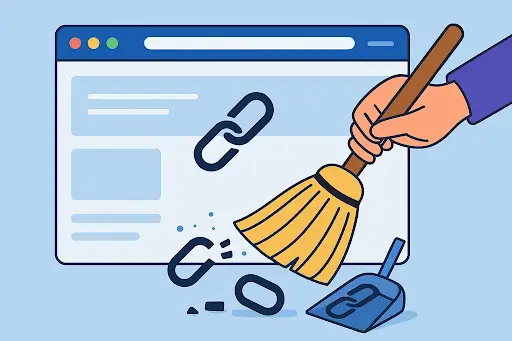
When you delete a page, remember that any button, menu link, or reference to that page becomes broken. A broken link tells visitors you don’t maintain your site, and that damages trust.
So after deleting, take a minute to check your homepage, your navigation bar, and any buttons. Fix the links. Remove what doesn’t belong. This is basic website hygiene, and avoiding it makes your site look amateur.
A Clean Site Shows You Care About Your Business
Websites naturally accumulate junk over time, old offers, expired events, test pages, and unused drafts. Letting these pile up makes your site confusing and unprofessional. Deleting unnecessary pages keeps your site sharp. And a sharp site builds credibility.
Managing a Google Site shouldn’t feel stressful. Once you know how to control the basics, like deleting pages, you’ll feel more confident making updates. Whether your site is for business, personal use, or a project, taking ownership of it makes you look organized, responsible, and serious about your online presence.
